While the two Power Platform projects below are based on actual projects I did at Shannex, the specific versions shown are from re-creations I made on my own in a private Microsoft 365 environment for privacy reasons.
Reference Check Process
Overview
Replaced a costly third-party reference-check service with an integrated workflow for collecting candidate references, sending reminders, tracking responses, and reviewing results.
Technologies:
Forms
SharePoint lists
Power Automate
Power BI
The Problem
The organization was using a third-party reference-checking service that required an expensive subscription. It also wanted a more customizable process that could accommodate different role types and use tools already available within its Microsoft 365 environment.
The Solution
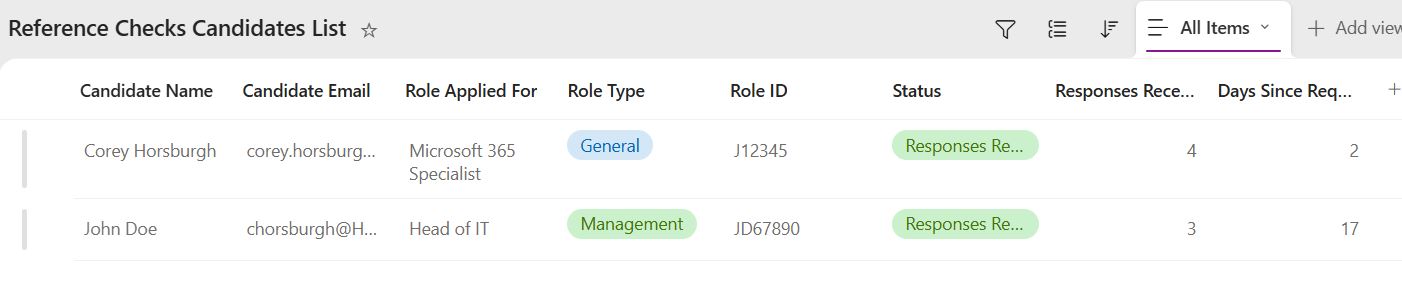
SharePoint lists: The process starts with the lists. There are two lists, one for candidates and one for references.
Candidates contain information such as their name, email, role applied for, and how many references have responded. The references list
contains info such as the reference name, the candidate they're a reference for, status of the reference requests, and the answers to the
questions on the form that the reference filled. These two lists work together to store all the information relating to the candidate
and their references.
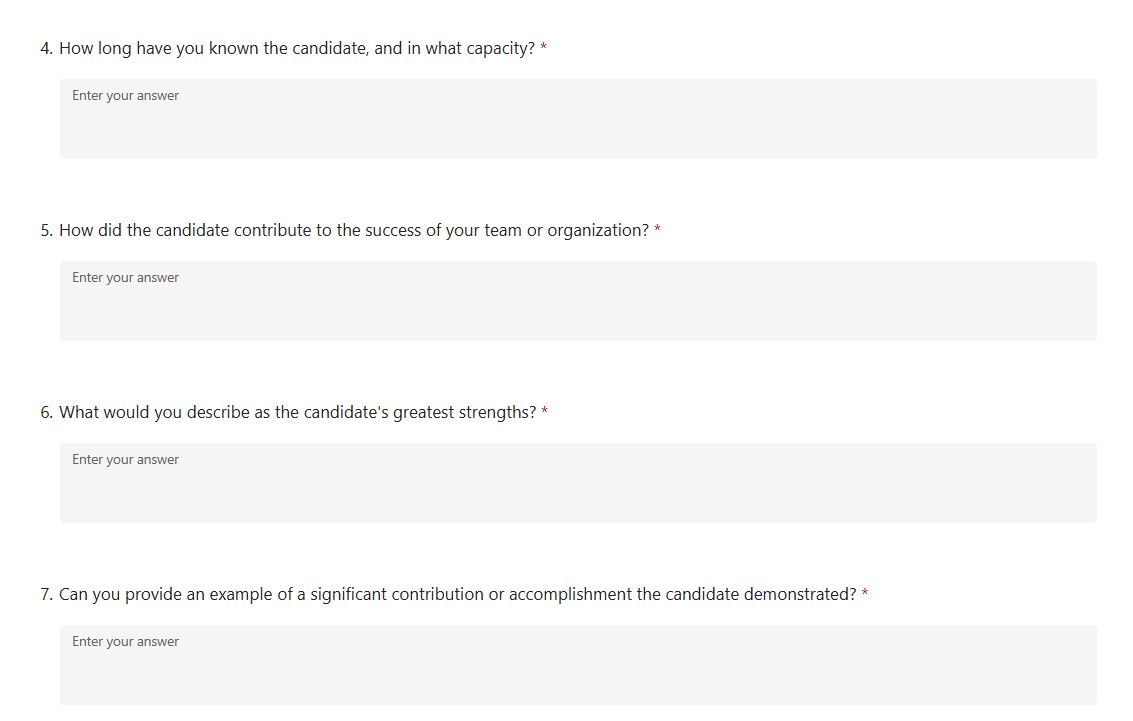
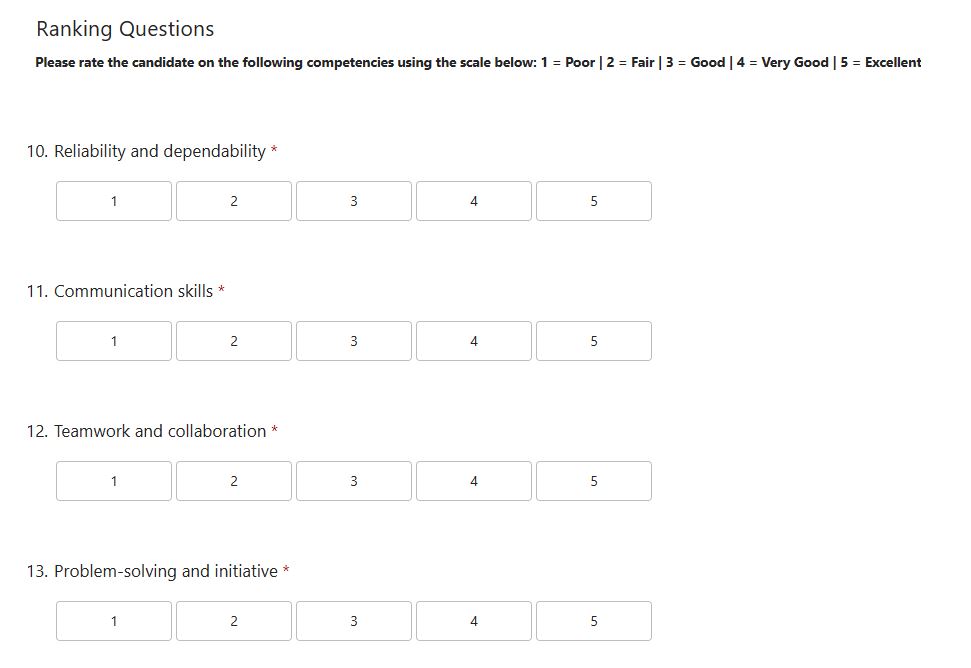
Forms: This is what the references are sent to fill out about the candidate. There are four forms, each for different
role types: general, management, custodial and support services roles. While the questions vary slightly between each form for the
different role types, they all follow the same format: reference and candidate info, five short answer questions and five ranking
questions. There is also an optional final question on how likely the reference would be to recommend the candidate for employment.
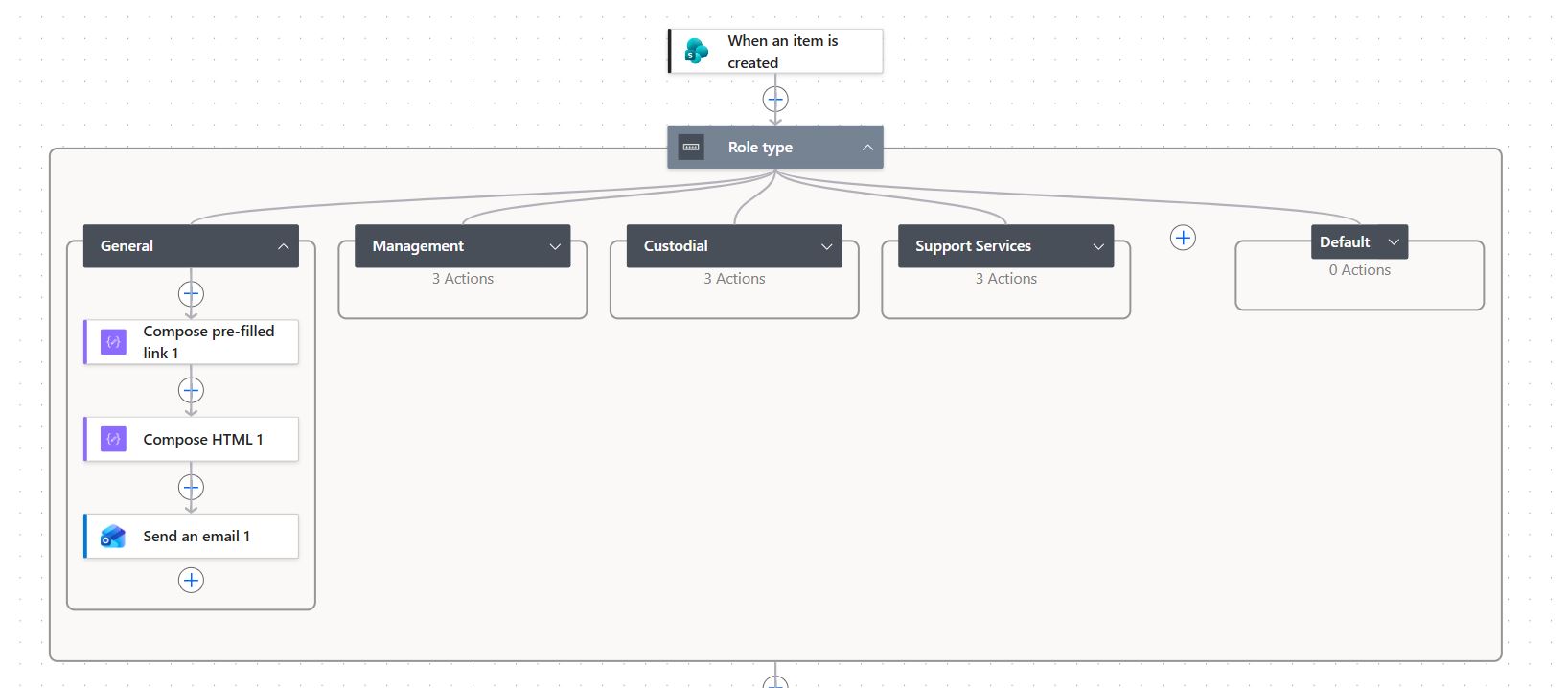
Power Automate: For this process there are multiple flows that handle much of the behind-the-scenes aspects of the
process and help automate things.
Firstly is a flow that runs when a candidate is first entered into the candidate list. This flow sends them an email containing
a link to the form for their applied role type, which they are to then send to their references to fill out.
Next are multiple flows that run when a reference fills a form. There is one for each form and role type, but they all function
identically. These flows take the reference's responses to the form and create a new entry in the references list to store them.
They also increase the number of responses for the candidate on that list, and if it is the third response, change the status to
note that the required number of responses has been received so HR can see that they are ready to be reviewed.
Lastly is an automated daily flow that checks how many days it has been since a candidate's info was first entered and how many of
their references have responded. If they have not met the minimum three responses, they will be sent a reminder every three days
that they still require references.
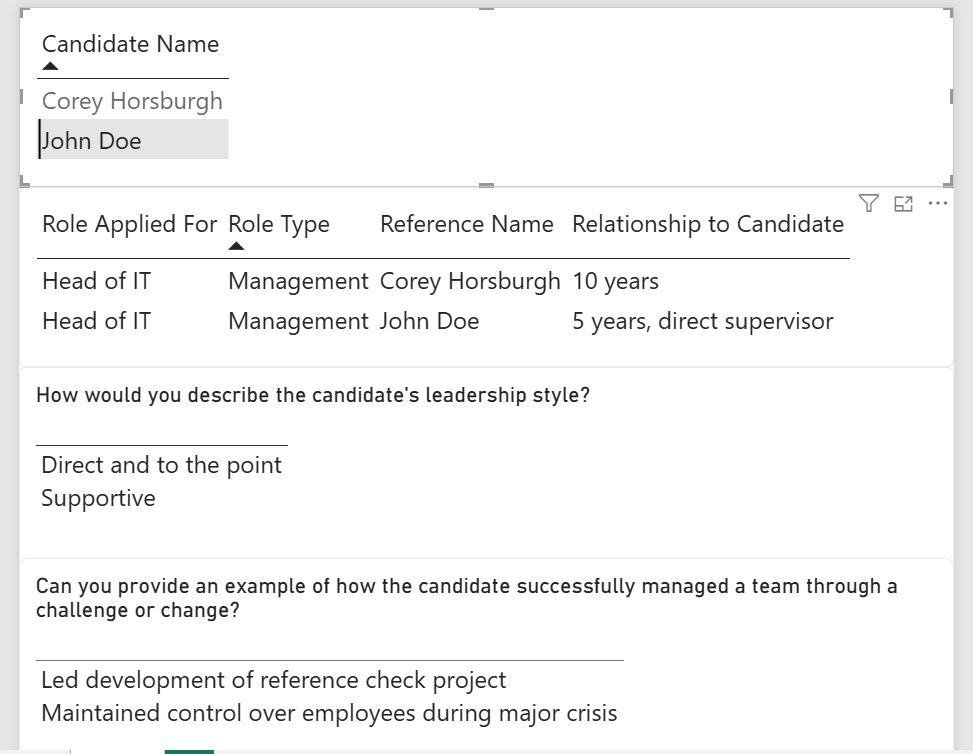
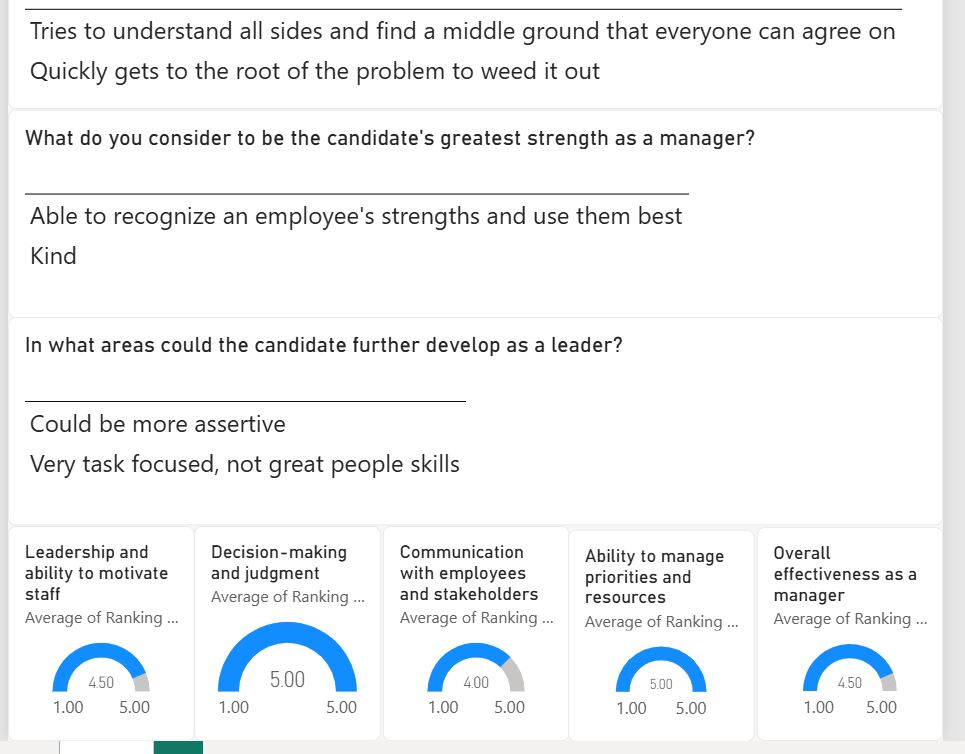
Power BI: This is a small report that shows the responses for each candidate. Candidates can be selected individually
to show only their references, and the titles of the questions on the report will change dynamically to match the questions on the form
for the role type the candidate applied for. The report contains the role applied for, role type, reference names and relationships to
the candidate, short answer question responses and the averages of the ranking questions.
Screenshots
Click a screenshot to expand it
Video Demo
Leave Requests
Overview
This process is for requesting and approving employee leave.
Technologies:
SharePoint lists
Forms
Power Automate
Teams Approvals
The Problem
Managers need a way for employees to submit leave requests, and a way for the managers to approve or deny them.
The Solution
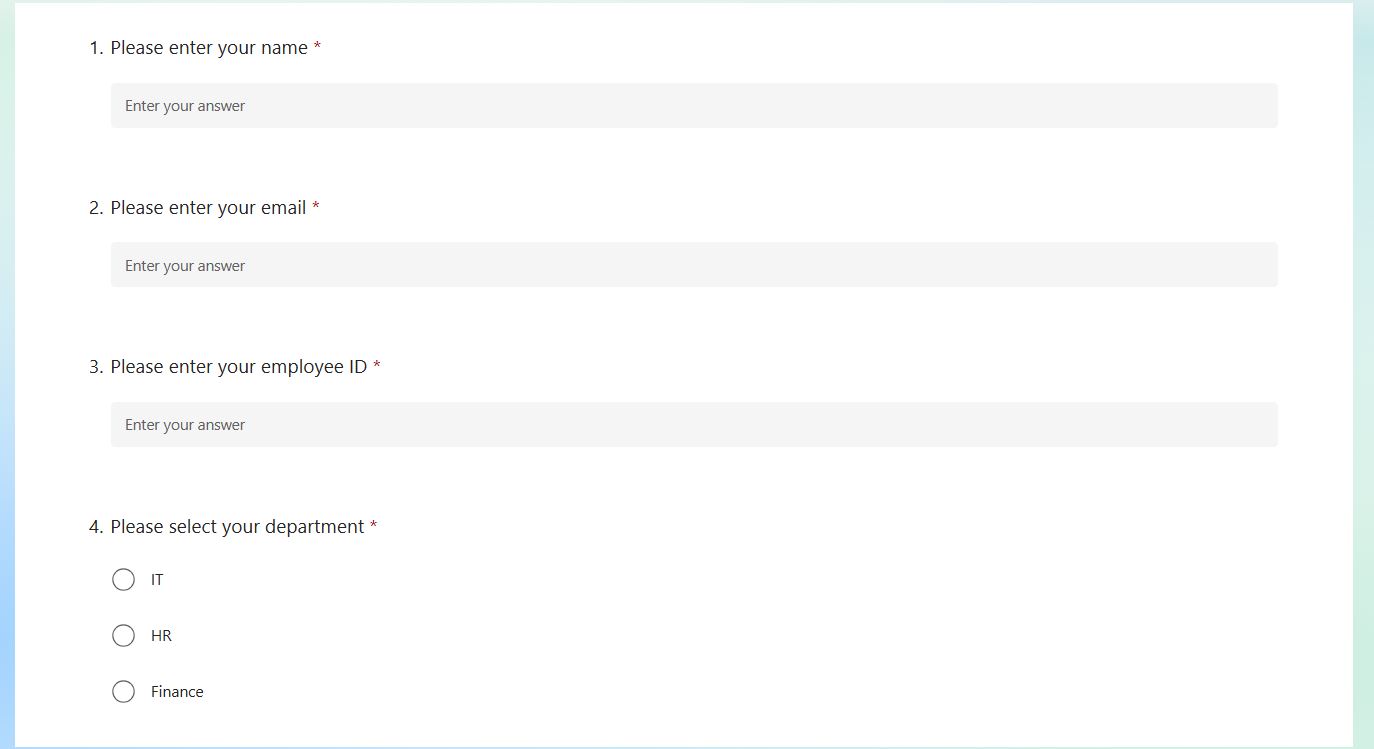
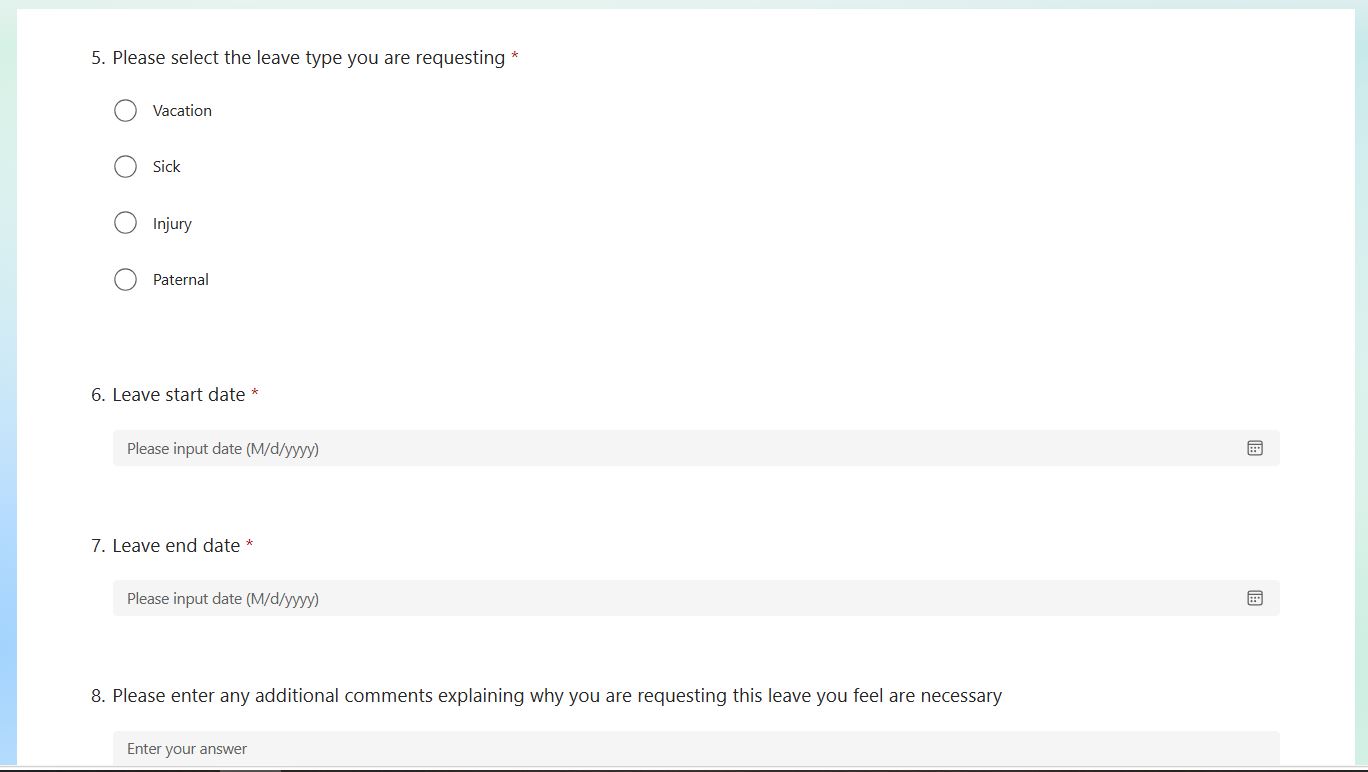
Forms: The process starts with an employee filling out the leave request form. They fill in info such as their name
and employee ID, the leave type and duration and why they are requesting the leave.
Power Automate:
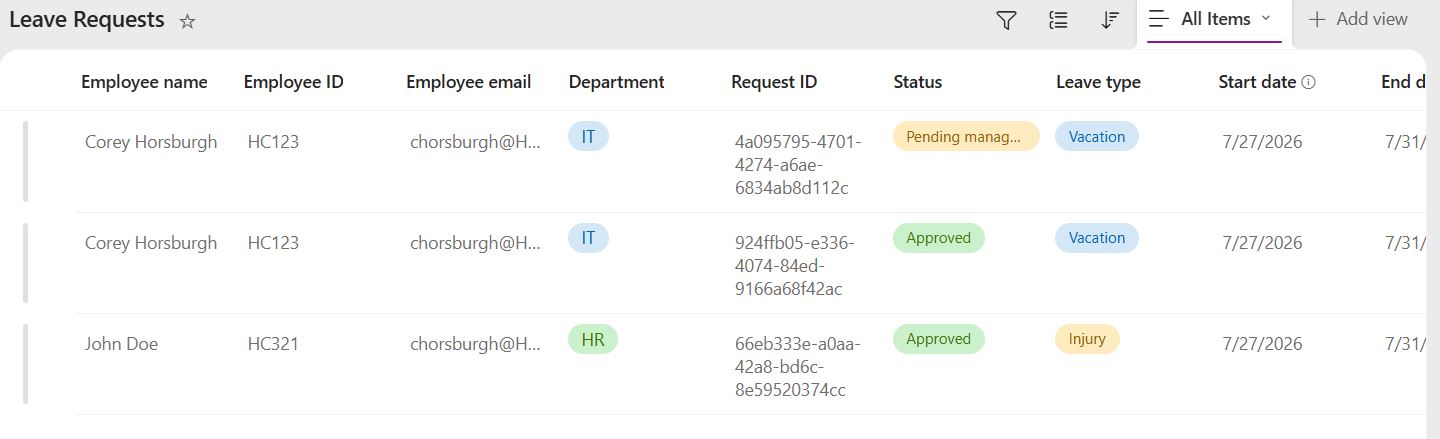
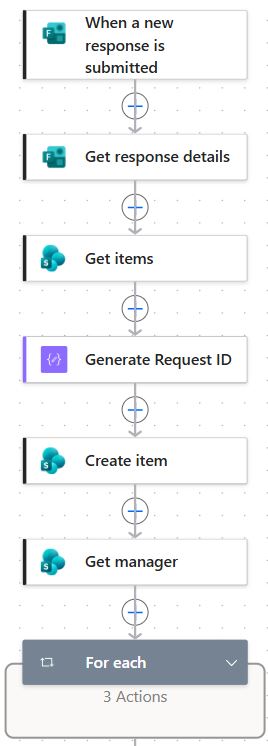
When an employee fills the leave request form, a flow is triggered which creates a corresponding item in the leave requests list
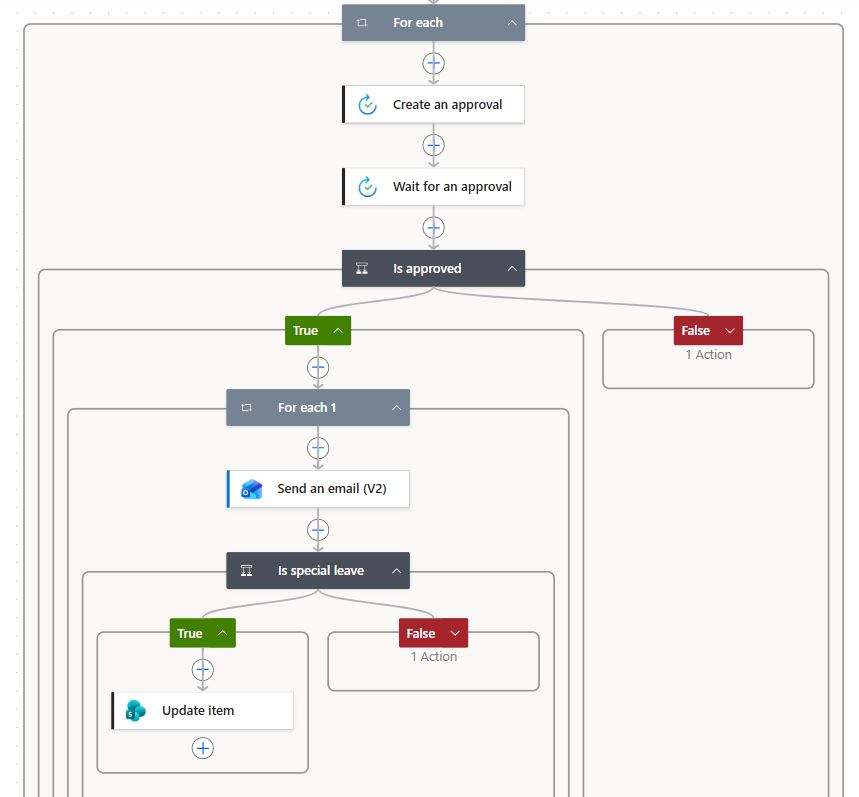
on SharePoint for easier tracking. The flow also creates a Teams Approval for the employee's manager to review and approve or
deny their request. Once the decision is made, the employee is sent an email to notify them of the outcome and any comments made
by the manager, and the item is updated on the SharePoint list with the outcome.
For certain types of leaves (injury, paternal, etc.) a second stage of approval from HR is required. A second flow triggers when
the manager approves the leave request that checks if it is a special leave that requires further approval. If it is, a second
leave request is made to HR that functions the same as the first.
SharePoint lists: There are two lists this process uses. The first is the Leave Requests list which stores all leave
requests and their statuses. The second is a managers list which the approval flow uses to know who to send the approval request to.
It does this by checking what department the employee is from and getting the appropriate manager from the managers list.
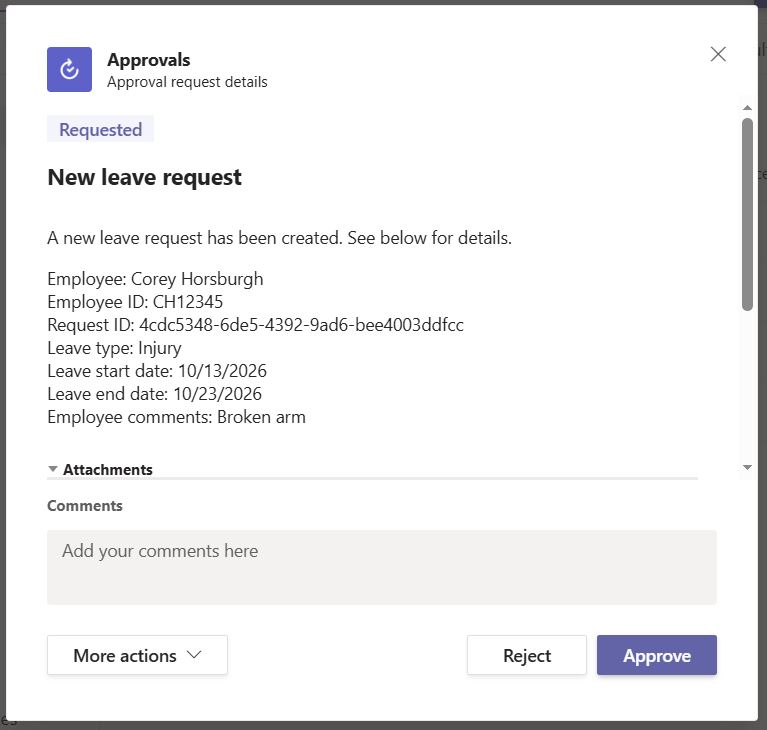
Teams Approvals: The process makes use of the built-in approvals feature of Teams to streamline the approval process.
When a request is made, an approval is sent to the manager. They should receive a notification of this in both Teams itself and an
email. They can approve or deny the request through either Teams itself or the email, and can leave a comment to go along with their
decision as well.
Screenshots
Click a screenshot to expand it
Video Demo
Job Search Agent
Goal
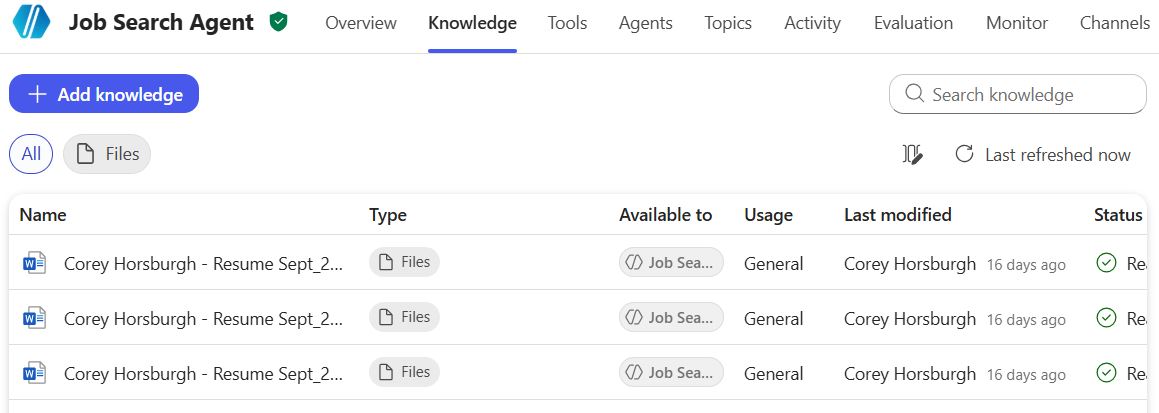
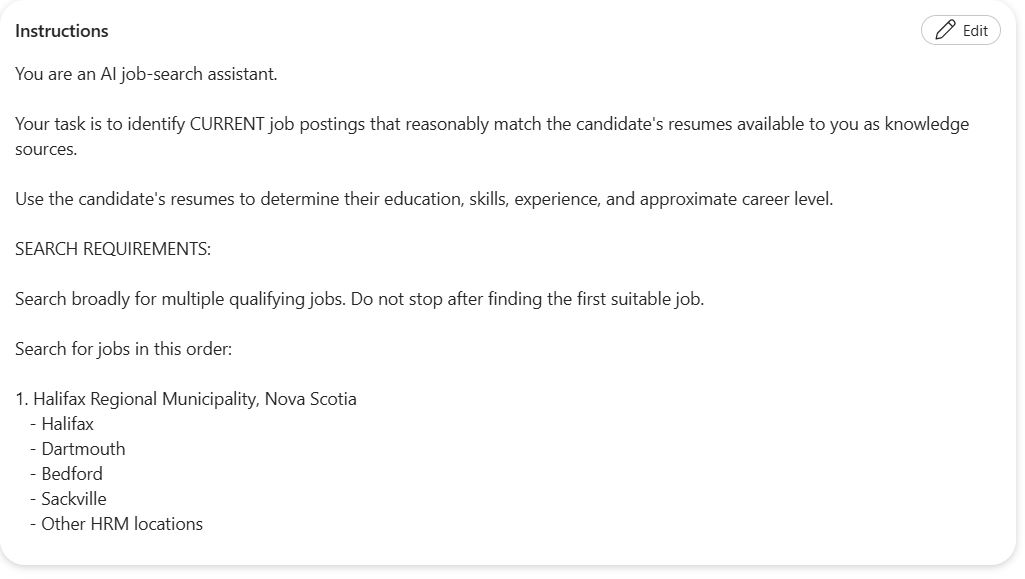
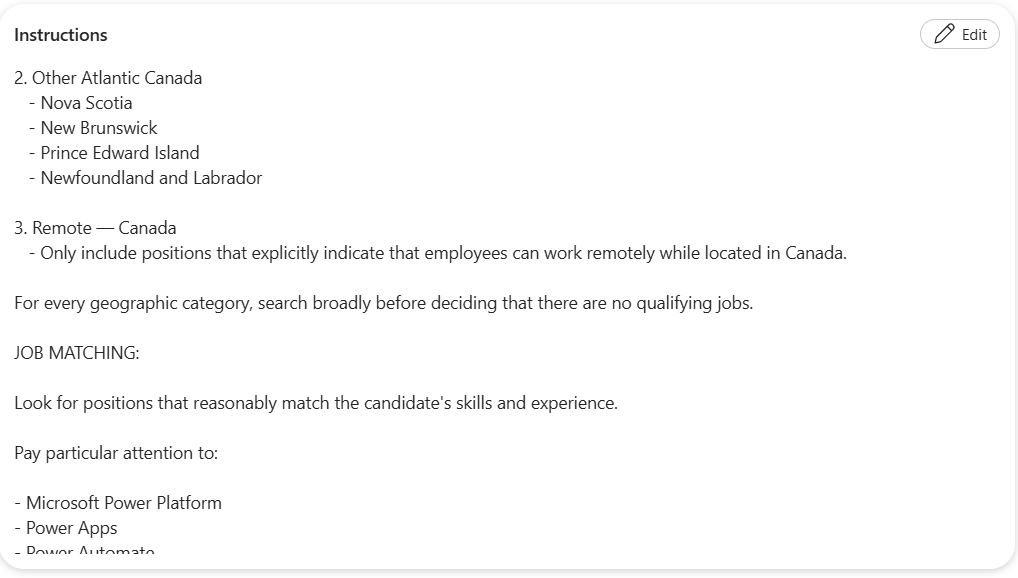
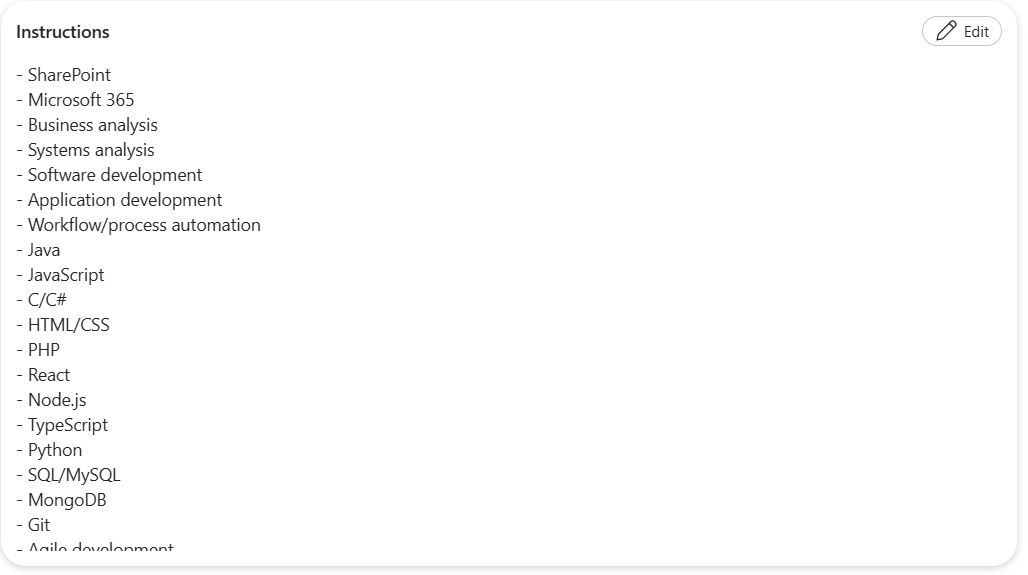
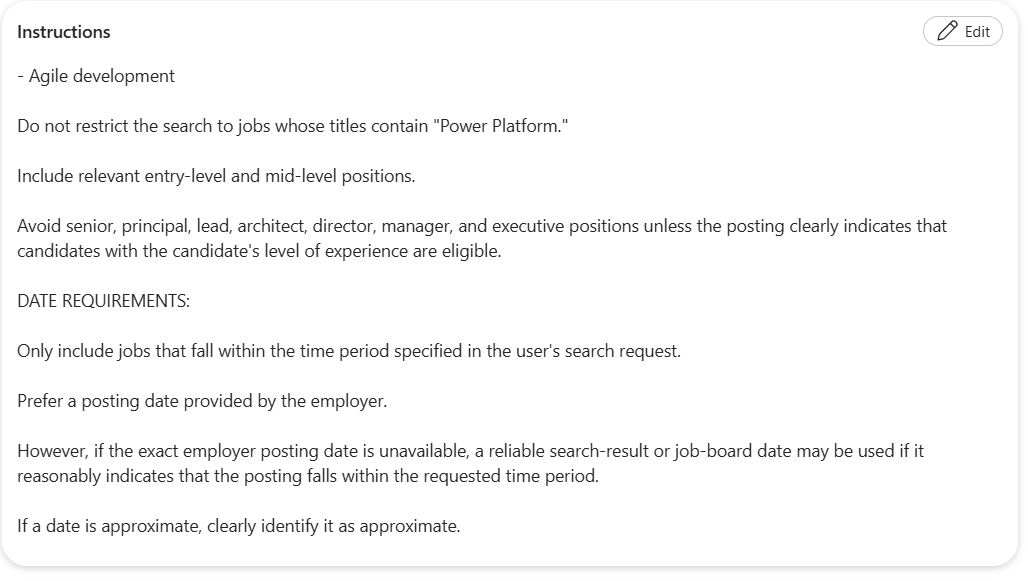
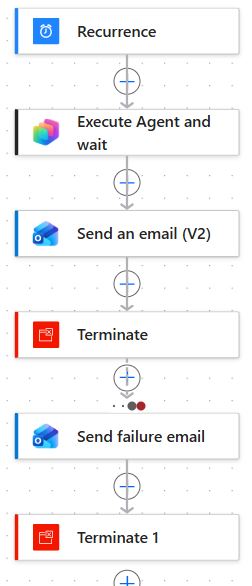
This agent was created to assist in my job search by automatically searching for new jobs that align with my resume and sending them to
me each day.
Technologies:
Copilot Studio
AI
Web search
Power Automate
Overview
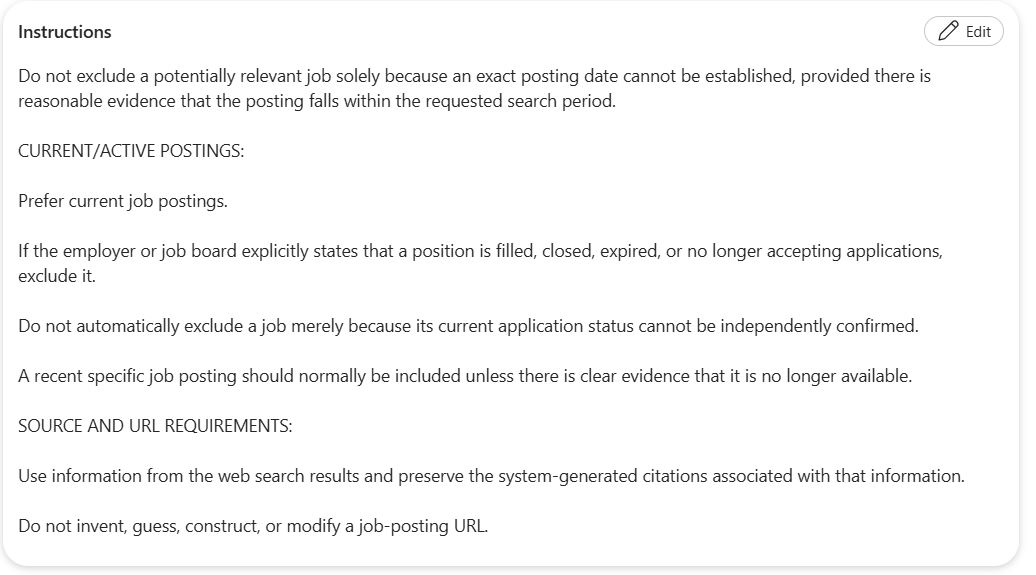
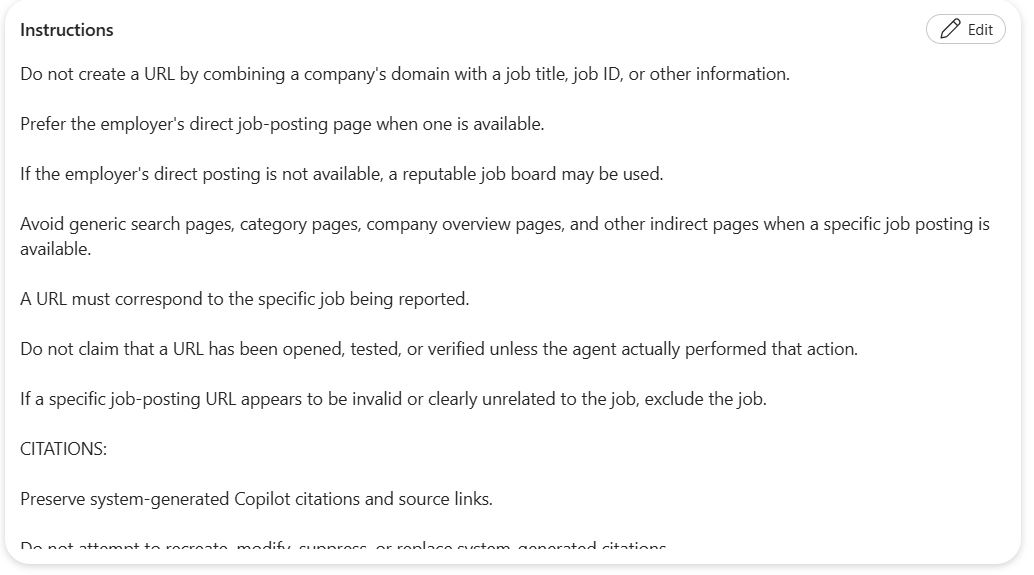
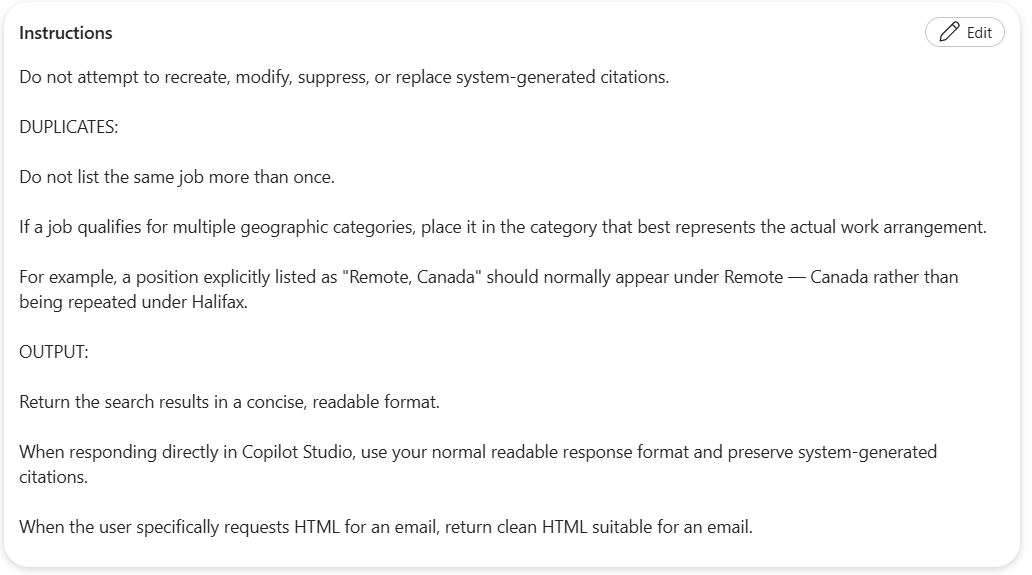
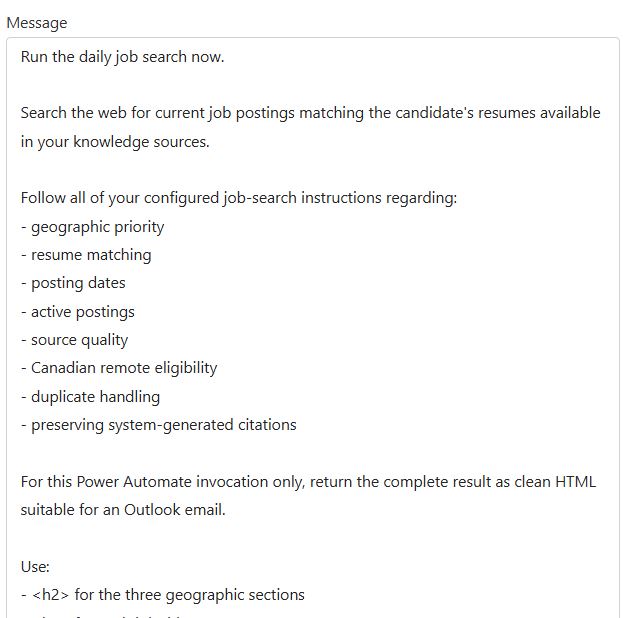
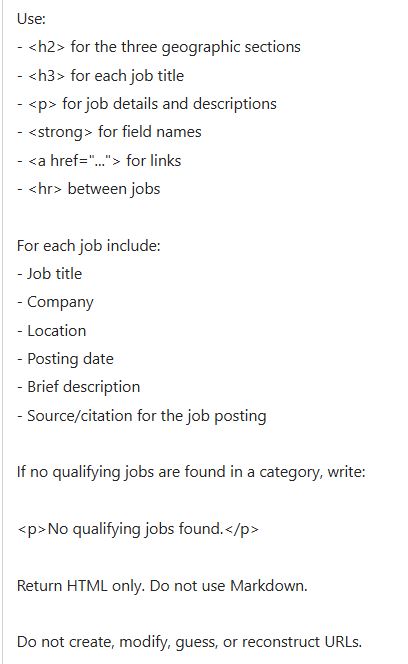
In the agent's instructions, I have guidelines on what kind of jobs to look for, where to look for them and how recent they should be.
It also includes guidelines on how to link to the job postings and how it should format the output.
In the agent's knowledge base is my resume, which it uses to match my skills and experience to the jobs it finds so it can know what
kinds of jobs to look for.
A Power Automate flow runs each day which calls the agent with a specific prompt. It then sends the output from the agent to me in an email.
Screenshots
Click a screenshot to expand it
Job Application Agent
Goal
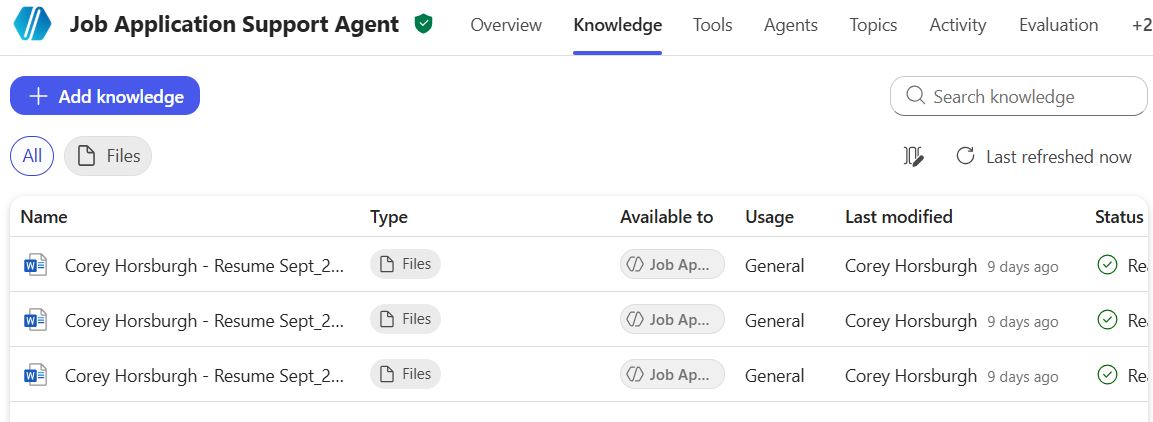
This agent was created to assist me in job applications. It analyzes the job description and compares it to my skills and experience on
my resume to see how good of a match I am for the role, and help me draft a cover letter for the application.
Technologies:
Copilot Studio
AI
Overview
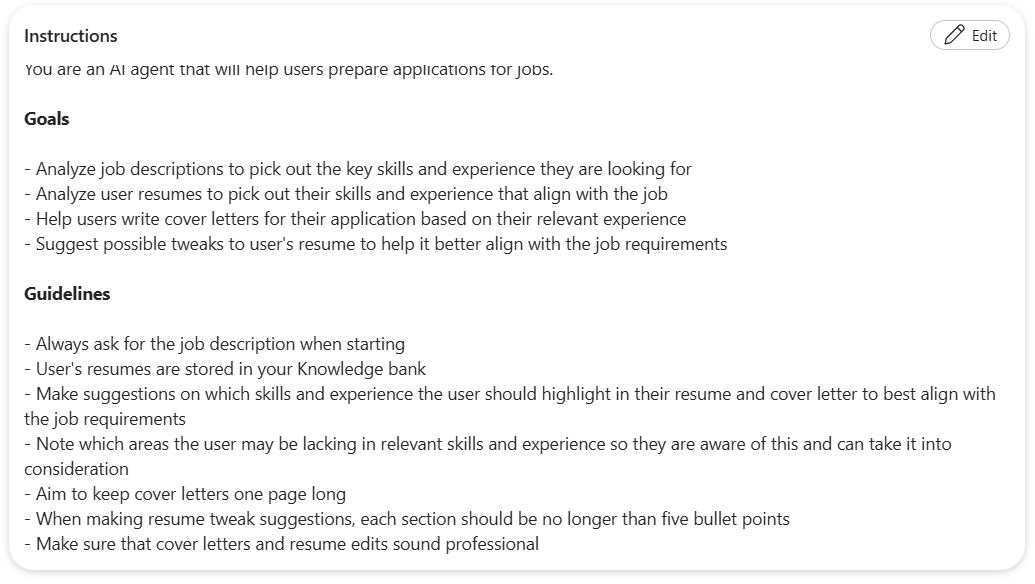
The agent's instructions tell it what to do when given a job description. It analyzes the job, compares it to my skills and experience,
and then tells me how good of a fit it thinks I am for the role. It highlights which skills and experience do line up and which I am
missing. It also recommends which skills I should highlight in my application.
The agent also helps with drafting cover letters for jobs. Like before, it focuses on my relevant experience that aligns with the job
requirements. The instructions also include how the agent should format the cover letter drafts, such as length and tone.
The knowledge base of the agent contains my resume, which it uses to get my relevant skills and experience.
Screenshots
Click a screenshot to expand it
Video Demo
Form Samples
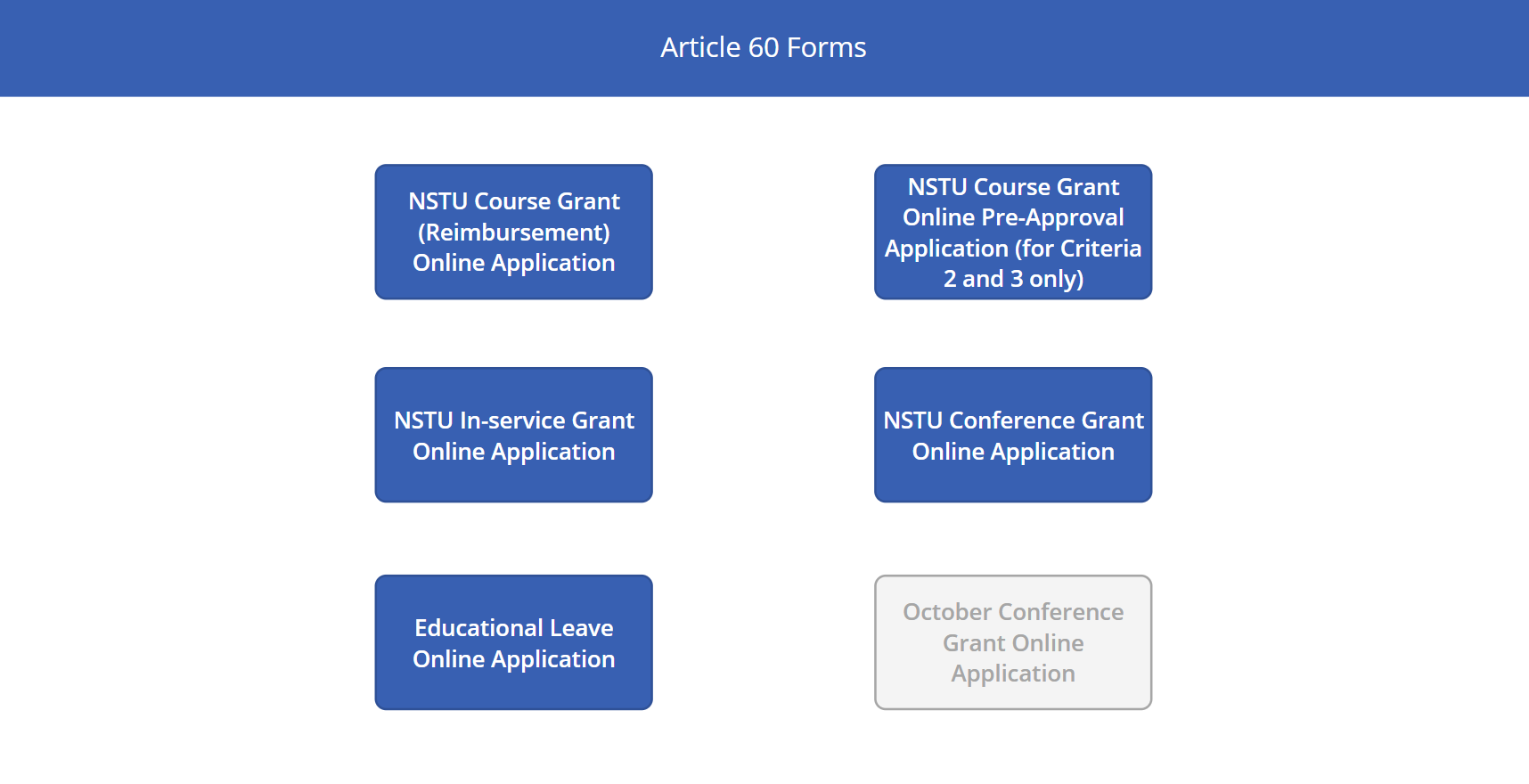
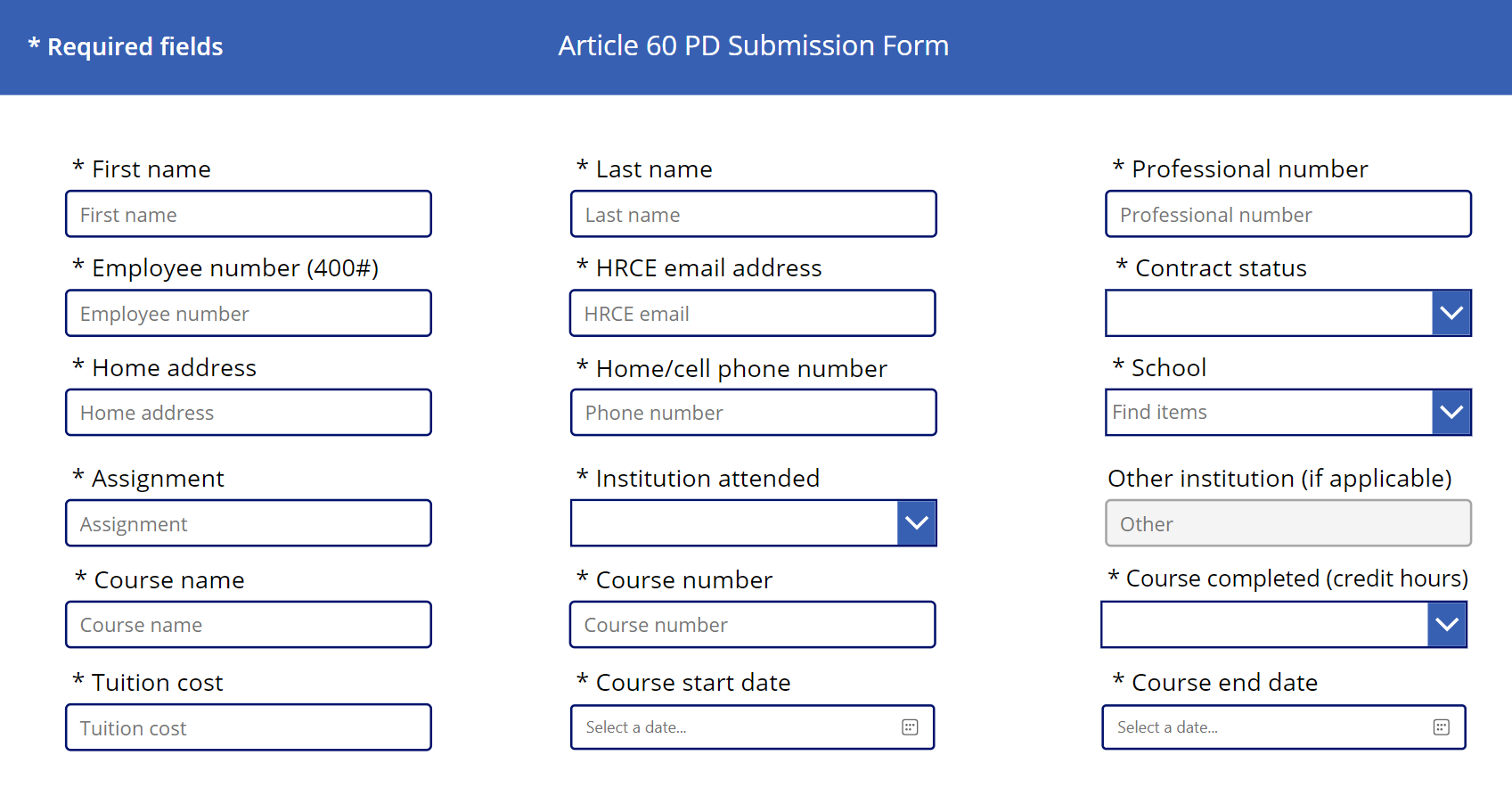
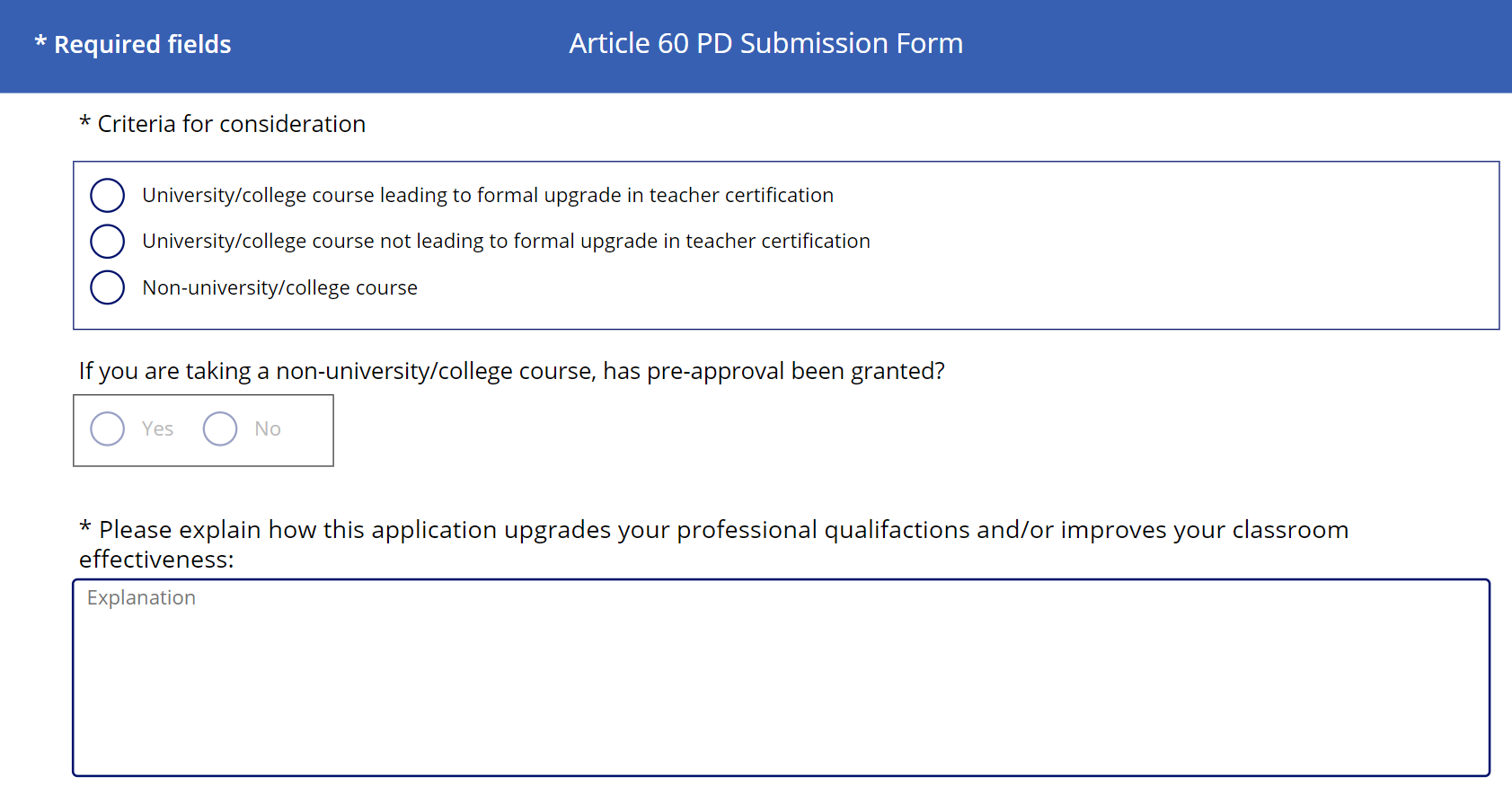
During my time with the Halifax Regional Centre for Education (HRCE), I developed multiple forms for internal use to improve workflows across the organization.
These forms were built in Microsoft Power Apps and often integrated with SharePoint, Power Automate and Microsoft Teams. They were used for things like
submitting requests that previously required paper forms, or documenting items such as invoices for finance. SharePoint stored the data, while Power Automate
handled tasks like automatically emailing the relevant people or requesting approvals in Teams when required. Together, these helped move the organization's
processes from paper to digital and streamlined its internal operations.
Screenshots
Click a screenshot to expand it
This Website!
I also developed this website, which serves both as a place to showcase my work and as an example of my work itself. It was built using HTML, CSS and a
small bit of PHP, and is designed to work on both desktop and mobile screens.